

If you sell one property and replace it with several Delaware Statutory Trusts (DSTs), you have to decide how much to invest in each one.
Each DST has its own loan-to-value (LTV) ratio, so investing the same amount in each can leave you with more or less debt than the property you sold. Changing the amounts changes the combined debt.
The NexTrend Securities 1031 DST Replacement Finder compares combinations and calculates those allocations for you.
This tutorial walks through the Finder’s own example, step by step, so you can follow along. In the pictures, an orange outline shows where to type or click.
What you need
- Your sale: the equity available for reinvestment and your share of the debt paid off when the property sold.
- Your DSTs: each one’s LTV from its offering documents. You can use offerings from any source.
Why equity and debt matter
For full tax deferral, you must reinvest all net equity and replace the debt that was paid off, either with new debt or with additional cash. You do not have to replace the exact mortgage amount with new debt. These are the reinvestment requirements; other exchange rules and deadlines also apply.
The Finder helps compare your proposed replacement investments with your sale’s equity, debt and real estate value.
Step 1: Try an example
To see how it works first, click Try an example. It fills in a sample sale and eight made-up DSTs. It is available whenever the DST list is empty. If you already have a list, click Reset first; Undo brings it back.

To use your own figures instead, enter your sale’s Equity and Debt in the top row. RE Value, the value of the property you sold, fills in by itself.
Step 2: Add your DSTs
In the example, the sale has $510,000 of equity and $490,000 of debt, and eight DSTs fill the list, with LTVs from 0% to 60%.
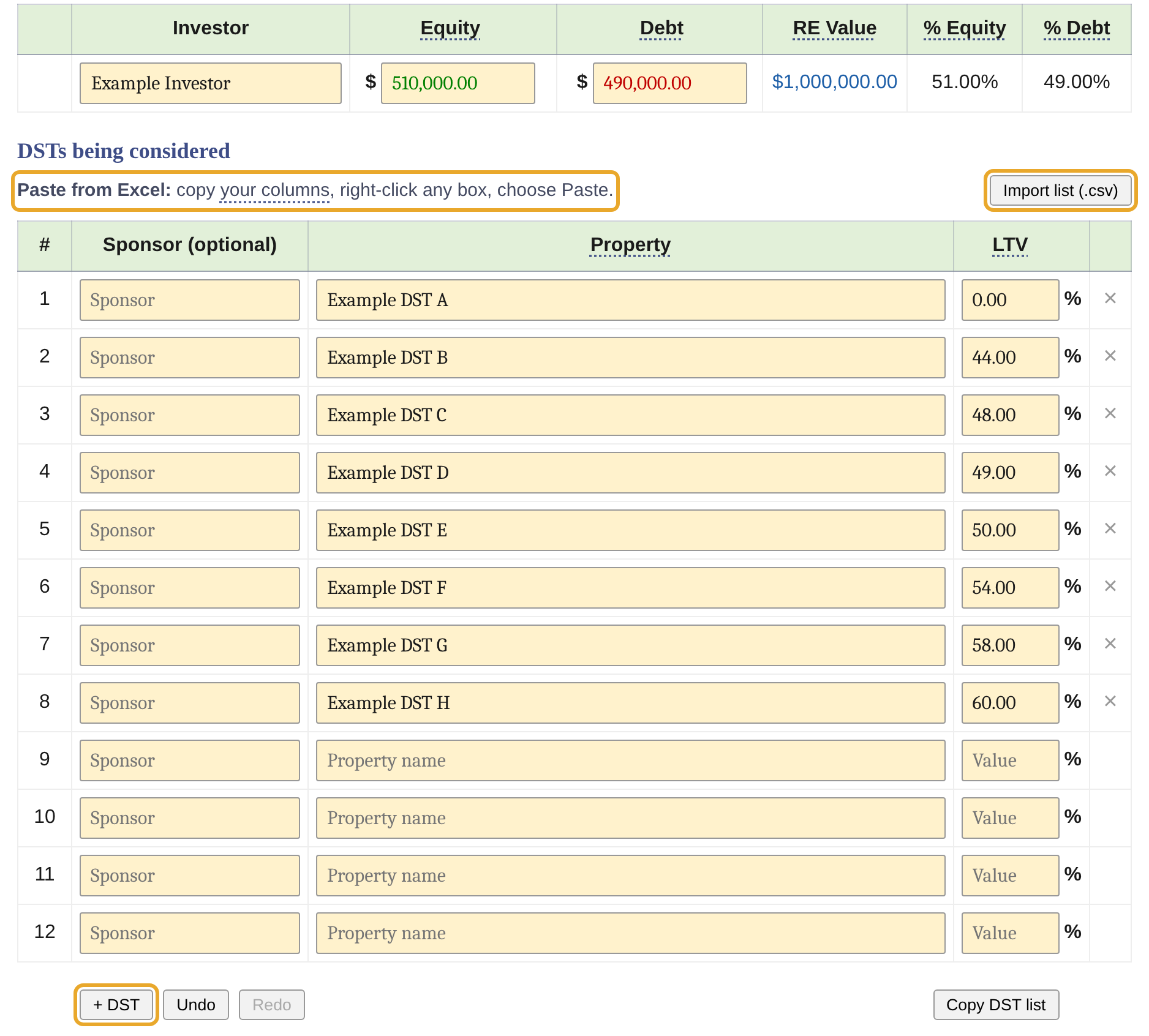
For each DST, enter the sponsor (optional), the property name and its LTV. The list starts with 12 rows and holds up to 25; click + DST to add a row. There are three ways to fill the list:
- Paste from Excel (fastest). Set up three columns headed Sponsor, Property and LTV, in that order, one DST per row. Select the cells, headings included, and copy. Then right-click any box in the Finder and choose Paste (or press Ctrl+V). All the rows fill at once.
- Import a file. Save the same spreadsheet as a .csv file (in Excel: File › Save As › CSV), then click Import list (.csv) and choose the file. It replaces the whole list. The file is read in your browser and is not uploaded.
- Type them in one row at a time.
Enter LTVs as percentages: 45 means 45%.
Step 3: Choose the combinations
Select combinations of 2, 3, 4 or 5 DSTs. Use Round each amount to round Even‘s allocations, and Show per group to see the top 3, 5 or 10 combinations.

In the example, the Finder checks all 56 combinations of 3 DSTs and shows the top 3.
Step 4: Compare with Even
Even divides your equity equally among the DSTs in each combination, subject to your rounding setting. It then shows the resulting debt, real estate value, and any debt shortfall or excess.
In the example, each DST gets $170,000. The closest combination, Example DSTs B, C and F, comes to $59.73 over the sale’s debt. The second, Example DSTs A, G and H, is $238.10 short (possible boot).

Step 5: Switch to Match
Match adjusts the equity allocated to each DST to make the combined debt equal your sale’s debt where possible. It keeps the allocations as nearly equal as possible while maintaining the Finder’s $25,000 minimum in each DST.
In the example, Match brings each of the top three combinations to exactly $490,000.00 of debt while investing the same $510,000 of equity. For Example DSTs A, G and H, the amounts become $169,834.71, $170,082.63 and $170,082.66.

Some combinations cannot match. When that happens, the Finder tells you why and shows the remaining difference.
Step 6: Open a combination in the Replacement Calculator
When you find a combination you want to examine further, click its ↗ button.

It opens the 1031 DST Replacement Calculator in a new tab with your sale’s equity and debt, the selected DSTs, and their investment amounts already entered.
You can then review and adjust the allocations, enter forecast distribution rates, and print a worksheet. See the Calculator tutorial.
Remove, undo and keep your list
- Remove a DST: click the × at the end of its row. To bring it back, click the undo icon that takes its place.
- Undo and Redo step back and forward through your changes to the sale and the DST list.
- Reset clears the sale and the DST list. Press Undo to bring it all back.
- Your DST list is saved in this browser. When you come back later, your DSTs are still there. Your sale’s equity and debt are not saved.
- Copy DST list copies your list so you can paste it into a file or email to keep it, or into the Finder on another computer.
Before choosing an investment
The Finder compares the figures you enter. It does not select investments for you or determine whether a DST is suitable.
Review each offering’s risks, fees, financing, investment minimums and availability. The Finder uses a $25,000 minimum per DST in its calculations. Actual offering minimums vary and may be higher. Check the offering documents before relying on an allocation. Confirm exchange requirements with your qualified intermediary and tax advisor.
If you would like help reviewing DSTs for your exchange, contact us or call (972) 661-1283.
Try the 1031 DST Replacement Finder →
This article is provided for general educational purposes only and does not constitute tax or investment advice. The scenario presented above is entirely hypothetical and is provided for illustrative purposes only. It does not represent the actual experience, performance, or portfolio of any specific investor or client of NexTrend Securities. DST investments involve risk, including illiquidity and potential loss of principal, and are suitable only for accredited investors. Tax treatment depends on individual circumstances. Consult your tax advisor regarding your individual situation. NexTrend Securities is not a tax advisor and does not provide tax advice.
Combine your DSTs to match your 1031 exchange.